Saturday, 13 August 2016

Despair over an old bleeding quilt!

Over the years, I've come to fear bleeding fabrics!  I prewash now, more consistently ever since I made a memory quilt for my mom in 2011.  Apparently I didn't prewash all the reds and the black fabric I used for one of the borders.  When I washed it before giving it to her, one of the reds bled as well as part of the black border!
I was really, really upset, because I had spent a lot of time picking out blocks that 'described'  my mom's life - lots of garden related blocks - she would make a garden in sand!  Travel fabrics because we travelled so much with my army father and she had immigrated to Canada in her mother's uterus!
There's a little block on the side of the Carolina lilies for each of her 4 children, with references to our lives.  I used the block design you see below for all 4 kids - but then chose fabrics and printed out images and logos from their jobs to highlight their lives.  You probably can't see these well for my sister, Lyn, but it shows her work as a nurse, a nursing home administrator, her life with her 3 sons (I personally believe that any woman who has 3 sons should automatically receive angel wings!)  her love of knitting, sewing and quilting!
Anyway....fast forward to this summer.  My mom died last year and I have her quilt back.  I did a last search for a solution and found it!!!!!  Colorways by Vicki  If you look down her tab for 'Tutorials', you'll find her article 'Save My Bleeding Quilt' and you can print it out.  I read it and didn't really want to use this solution for this queen size quilt, BUT....  So I experimented  with a small wall hanging that also had some bleeding on it and it worked!  Beautifully!  So into the bathtub it went for 24 hours.  I did rinse it twice in the bathtub, but then I gave up and put it on the delicate cycle and cold water.  My neighbour let me hang it out on her clothesline.
Pros:  the commercial fabric bleeds, came out of the quilt, even after 5 years.
Cons:  the fabric blocks that I printed on my inkjet printer faded.
Conclusion:  I love this method and will use it whenever I have to!  Although I said that I prewash all my fabric and take care, you will see by reading the article that you still sometimes get bleeding!  And if you use the rubbing alcohol and flour recipe to baste the quilt top, batting and backing together, then you really have to wash the quilt after you finish quilting it!

Saturday, 2 July 2016

Quilt Canada 2016

So I've been back a few weeks from Quilt Canada, but does that mean it's too late to comment?  Too bad!  I was sick and then had some driving to do, so here goes.... my 2 cents worth.
My friend, Jackie http://jabotquilt.blogspot.ca had a LOT to do with this show as did the directors (Linda, Leslie, Judy, Bonnie) of the CQA/ACC www.canadianquilter.com, Jackie Philpott (the registrar), Liz (the conference coordinator) and then ALL the fabulous VOLUNTEERS who made the show so great for the visitors, the teachers and the vendors.

My friends, Rolanda and Pat, and I booked into a hotel for the week and then signed up to volunteer in various ways.  I think that volunteering really enhanced our trip - we met lots of new people, saw some great classes in progress and, of course, bought one or two items!  (found a couple of good restaurants nearby - which we'll talk about more next year!)  While I was volunteering at the Trend-Tex Challenge exhibit, I met an Indian visitor and after chatting with her for a while, she told me about her family in India sending her a quilt made by her 90-year old grandmother.  The next day she brought in the quilt made from diamond shapes cut out of saris (I remember that my grandmother only used our old clothes for quilts!).

So you'll see a photo below of Sabia in the CQA/ACC booth, as well as a photo of what her grandmother had sewn.  Apparently she started with making the star shape and then added to it.  Maybe next year, we'll see Sabia's own quilt in our show!
I volunteered in Sue Patten's long arm quilting class and I neither have one of these machines, nor will I ever have one.  But Melissa (Melissa's Quilting Service on Manitoulin Island) assured me that I would still learn a LOT that I could apply to my domestic machine.  She was right.  She is a dynamic, knowledgeable teacher and had lots of ideas.
Then I took a New York Beauty class from Ana Buzzalion http://anabuzzalino.com.  I saw Ana on Quilting Arts many times teaching free motion quilting and wanted to take a quilting class.  Well that didn't work out, but I did love the class and one day, I may even finish it!
And I was able to make some new friends - Val Tucker, and run into quilters I really wanted to see - Cindy Simpson, Judy Kelly, Catherine Henderson - to name a few.
Here are some of my other highlights of the weekend (the last 4 are some of my favourite of the Trend-Tex Challenge pieces - I am always amazed at how quilters can take the same 5 pieces of fabric and make such different pieces!):
Toronto Modern Quilt Guild - Break Free by Jeannie Jenkins

by Joanne Love - I love the eyes on this little guy!

by Jim Wilford - I really admire his piecing and quilting.

I really enjoyed spending time with my sister and her friends!

Me with my sister, Lyn, and cousin, Dianne - we had a good time!

This was in the vendor's area, but I love this design!  I think it's by Judy Martin.

This was amazing!  by Rosana Kantarjian - I can see how she quilted it, but piecing it? Amazing.

Sorry - don't know who made this, but I want to do waves well one day!

by Cindy Simpson - those are large zipper sections on either side.

by Francine Carriere

by Myra Tallman - note the hand stitching!

by Susan Wilson - so clever!


Tuesday, 24 May 2016

Preview for The Road Home RAL

I am really excited to be part of The Road Home RAL, coming this September http://www.seamstobesew.com/category/events/the-road-home/.
I wanted to push myself to fix my blog and to be more consistent in blogging, so I volunteered to create for this event.  So... can I do it? Well I'm really enjoying the design aspect of this event and I hope everyone enjoys seeing the result in September.
And after Quilt Canada, which I hope is a HUGE success - certainly they have everything I want to see - the National Juried Show, the concurrent shows, classes, lectures, the merchant mall and, above all, other quilters to meet and talk with!  Anyway, after Quilt Canda, I have to get down to work and make my blog more attractive!
Wish me luck!
Of course....then there's the yardwork, cleaning up the beach, housework, etc....

Sunday, 3 April 2016

EQ7 videos - How to Get More Fabrics!

OK - I'm experimenting with video (without a video camera!  I took a couple of videos with my regular camera to try to illustrate this article - What do you think?  

Here are the first 2 about getting fabrics into EQ7:  EQ7 - First part of video on getting fabrics , EQ7 - Second part on getting Fabrics into EQ

Sunday, 21 February 2016

Design a Mystery Quilt with Electric Quilt - Part 2

Electric Quilt ©?  http://electricquilt.com/ 
Do you like the patterns you see in magazines and shows, but want to change the size or colours?  Would you like to sew a copyright-free quilt? Every quilt block and quilt you make can be as unique!  Electric Quilt is the easiest quilt design computer program on the market and it can produce the most complex design you can draw as you develop your skills!

Mystery Electric Quilt©
We began this short series of articles in the Summer 2014 issue of The Canadian Quilter by showing you the ways of choosing fabrics and colours for an Electric Quilt project.  We hope that you have chosen the fabrics for this project and are ready to work on your layout.

Your homework:  By the end of this article, you will have a project started and will have all your fabrics ready to work with.


At any time during your reading, you can choose to switch to ‘video’ mode and watch the excellent videos created by the Electric Quilt staff.  They are clearly spoken and accompanied by screen shots from the program - http://doyoueq.com/lessons_categories/eq7-video/

Start your Project

When you start Electric Quilt, you first see the ‘tip of the day’ box.  You can read a lot of tips by clicking on the ‘Next’ button, or click ‘Close’ to get to the next screen.  (Figure 1)
The next screen offers you 3 choices:  Create a new project, Open an existing project, or Start with a quick-quilt project.  It’s helpful if you think of ‘projects’ as file folders – inside each file folder you can place many quilt and block designs.  BUT... you have to remember where your quilts are stored!  Many EQ users employ useful names for their folders, i.e. baby2014, DearJane, Wedding2014, BOM2014, Guild2014_15, LogCabin, NewYorkBeauty, etc....  This helps you track down and work on your quilts.  As you work on quilt designs there is a great visual method to keep track of your quilts as well that we’ll show you later.
We have named this project CQA_Mystery and we’ll use this name in the series.  Click OK once you have named your project. (Figure 2) (By the way, I purchased the EQStitch 'add-on' because I own an embroidery machine.  But it works exactly the way that EQ7 works with a couple of extra tools for embroidery designs.

Project Menu
Once you have begun a project, you will see the basic menu and a block design area (EQ will automatically begin with the last block size you worked with).  VERY IMPORTANT NOTE:  EQ is not like the word processor you use.   EQ has really made an effort to help users by making image icons to use in designing.  You don’t have to go to File -> SaveAs to save your project (and, indeed, this will confuse the issue if you do).  Your main tools for saving and looking up in a project will be the red arrow and the glasses icons on the top menu.  The red arrow icon saves whatever you are working on (block, quilt, photo or embroidery) and the glasses icon opens up the Project Sketchbook so that you can look at what you have in the project. Train yourself to use these on a project to make EQ easier to use.  (Figure 3)

Other Icons
The first two icons on the top bar are 1) the blue/white page - Start a new project and 2) the file folder - Open an existing project.   You don’t use either of these while you are working on a project.
The disk icon saves your project.  The printer icon will bring up a menu of various printing options.  The curved arrow icon is a great help – it allows you to ‘back up’ step by step.  To the right of the ‘very important’ icons are the magnifying glasses.  The only one that has 2 steps in it is the ‘+’ glass – when you click on it, you must then move to the area of the screen that you want to zoom in on and, holding down on the left mouse button, draw a rectangle.  When you release the button, you will be ‘zoomed in’.  Next is the ‘video’ icon which will bring up a list of videos if you choose to pause and watch a technique.  The next icon (?) is an excellent tool to use until you are accustomed to EQ.  This tool displays dynamic help.  If you click it then move to another menu item, a screen on the right will explain its use.

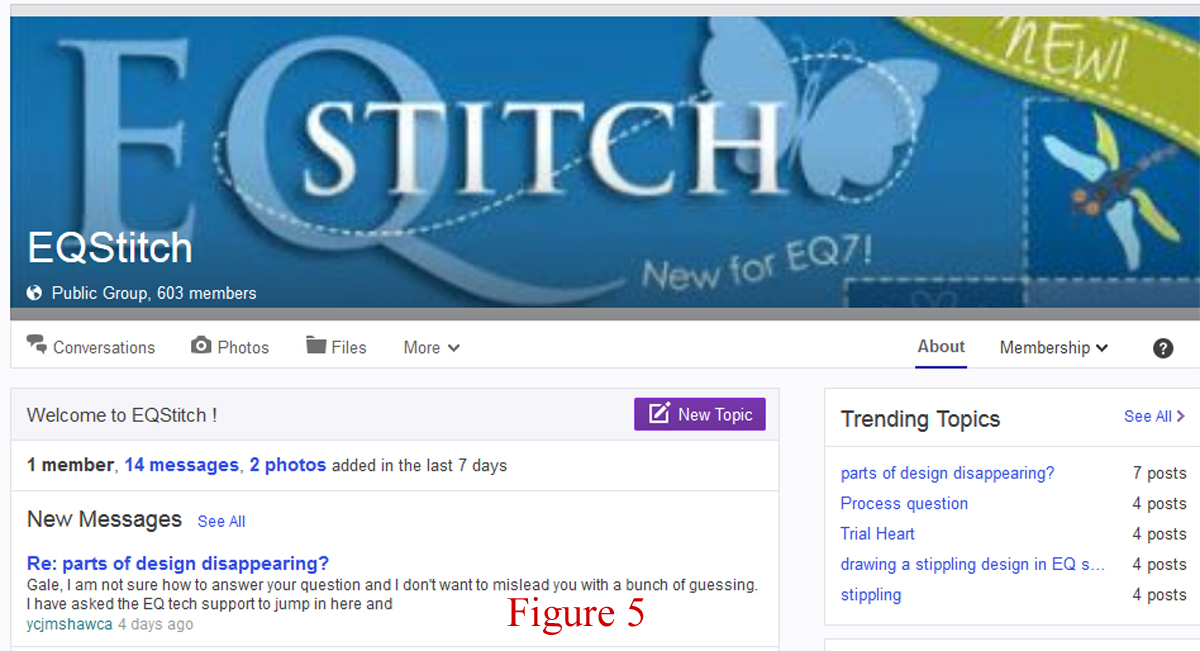
The last 4 icons are also very important – they indicate what design ‘mode’ you are in – for example, in Figure 3 you can see that the orange one has been pressed – that means we are in the ‘block design mode’ and the menu item ‘Block’ appears in the Text menu above the icons.  The red icon is the ‘quilt design mode’ and instead of ‘Block’, the word ‘Quilt’ will appear.  The blue icon is for working with Photos and EQ is amazing with all the photo features it has.  The green one allows you to add embroidery designs to your quilts.  A Canadian quilter and embroiderer, Yvonne Menear, has written the instruction book ‘EQ with Me: Learning EQStitch’ and has produced videos on YouTube (Figure 4), AND she runs a Yahoo group devoted to helping members incorporate embroidery patterns into their quilts (Figure 5)!


Getting to Work on our Project
The first task is to import the fabrics chosen in the first article into our project (actually this can be done anytime during a project as well – there is always the default library of fabrics you can work with).  On the text menu, you will see the item ‘Libraries’.  Click on that, then roll down the menu and click on the second item – Fabric Library.  If you chose to import .fab fabric files (from the Summer 2014 article) then you will find them below the EQ7 Libraries.  Click on the library holding the images of fabrics you want to use and then click on the fabric and click on ‘Add to Sketchbook’ to add a fabric to the project.  You can also hold down the ‘shift’ key and choose several fabrics.  (Figure 6)


If you chose to scan or save fabrics into your personal library, then you should click on My Library and then click on the style where your fabric images are stored. (Figure 7) You still need to click on a fabric and then on the button ‘Add to Sketchbook’ to add the fabrics to your project.  We should note that each project can hold its own unique group of fabrics.  Your ‘Baby2014’ project fabric sketchbook may look much different from your ‘DearJane’ project!


Once you have added as many fabrics as you want to your Sketchbook, you can take a look at your choices by clicking on the ‘glasses’ icon.  This click will open the Project Sketchbook and when you click on ‘Fabrics’, you will see the default set of fabrics as well as the ones you have chosen. 
We can note at this point that you have the option of viewing 4 fabrics at a time or many.  The small icons just above the words ‘Figure 8’ are clickable and will change your view for you.  (Figure 8)  Close this menu to move to the next step.


Next Issue:  We’ll work on the layout and borders.  Did this article answer any of your questions about Electric Quilt©?   I hope so.  This software has added a new dimension to my quilt life and I LOVE it!! 

Sunday, 17 January 2016

Beginning Electric Quilt 7 (EQ7) - Part 1 of 5 parts

I wrote this set of articles for The Canadian Quilter - the magazine for CQA/ACC http://www.canadianquilter.com  

OK - I'm experimenting with video (without a video camera!  I took a couple of videos with my regular camera to try to illustrate this article - What do you think?  Here are the first 2 about getting fabrics into EQ7:  EQ7 - First part of video on getting fabrics , EQ7 - Second part on getting Fabrics into EQ


I wanted to write some 'beginner' tutorials that would be interesting to follow.  Now, almost 2 years later, I'm not sure I should have started with choosing the fabrics for the mystery project, but 'done is done'.  If you don't want to do this part, I hope you'll check back soon and try Part 2!

Design a Mystery Quilt with Electric Quilt – Part 1  
Electric Quilt? http://electricquilt.com Why would you want to design your own quilt on a computer?  There are as many answers as there are people who have learned to use this versatile computer software:
·         “I used it this month to design a charity quilt for my quilt club that won’t infringe on anyone’s copyright.”
·         “I copy the ‘block of the month’ from the guild newsletter when they have a foundation piecing block and then print out the pattern on interfacing.”
·         “I look up quilt blocks from the Library in Electric Quilt when I’m thinking about a new quilt project.”
·         “I created a queen-size quilt out of ‘tumbling’ or ‘baby’ blocks in 2 different sizes.  Now I’m going to colour them in and decide which size to use to make an English paper-pieced quilt”
·         “I design a simple quilt and colour it with the fabric samples I get from the Internet.  I like to pick my colours first, then go shopping!”
·         “I use the program to make a quilt design and add borders to make the exact size I want”
·         “I always used to design my quilts on paper, but it’s so much easier to ‘erase’ something in Electric Quilt!”
·         “I know it’s not quilts, but I used it to redesign my sewing room!”
·         “I like to participate in Club EQ (http://doyoueq.com/clubeq/) challenges; first to learn new skills and secondly to see the wide variety of patterns that are produced and shared.”

Mystery electric quilt
In this series, we are going to lead you through the design of a mystery quilt project.  The images you will see will be from Electric Quilt, version 7 (and although Electric Quilt is now available for Macintosh users, these images are from a Windows computer).  We’ll start the project by finding and selecting fabrics because this is one of the most frequent questions I answer from new users: “Can I use my own fabrics in my design?”  I find that there are generally three groups of quilt designers:  one group wants to use their own choice of fabrics, the second is happy to choose similar colours, and the third group believes in ‘value’ and they work with shades of grey.  Please choose your own method and then we’ll continue with the mystery design! 

Your homework:  The fabric colours you need to choose are:  a dark and light green, a dark and light flower colour, a background colour and perhaps one to three other colours for the border.

Using Your Own Fabrics (jpeg/jpg image files or fab (fabric) files)
A.    JPEG or JPG Image files (this format is the same that you use for digital photographs.  You use photos of the fabric and import them into Electric Quilt and use them to colour your blocks)
1.       If you have your own fabrics at home, you may scan them in with a printer/scanner to scan them in at 72dpi and Electric Quilt has a great ‘Help’ sheet outlining this process.


2.      Even if you do have the fabrics, it is sometimes easier to use an online shop or fabric website, like http://www.sew-sisters.com or http://courtepointeclaire.ca/fra/accueil.htm  or http://www.myfabricspot.com to find the fabric swatches of your own stash.  When you see a fabric swatch you want to use in Electric Quilt, click on the image to bring up the menu (Right click on the mouse or touchpad) MENU .  Click on Save Image As...  At this point, you need to set up a process that you will ALWAYS follow – otherwise your fabrics will get ‘lost’ in your computer.  Here’s mine:
a.       Click on ‘Save Image as... – this will open up a file folder so that I can choose where to save the image
b.      I open up ‘Documents’, then ‘My Documents’, then ‘My EQ7’, then I have a folder named ‘fabrics’
c.       Inside this folder, I create a folder for each website that I use (or you can create a folder for each quilt project)
d.      I open up the folder for the chosen website, then ‘Save’ the fabric swatch
e.       Return to the store menu and repeat the steps to save any other swatches you want
3.   
   Download fabrics from a fabric company that provides support for Electric Quilt:
a.       Northcott (http://www.northcott.net )  is a company providing image files. When you choose a fabric line from Northcott, you will see a button on the right side of the window – click on this and you will have the option to open or save the Winzip file of fabric images.  If you open it, you will be able to select all the fabrics you want, then save them to a ‘northcott’ folder.


b.      Electric Quilt has written a help file to aid in downloading fabric samples at:  http://support.electricquilt.com/Downloading-and-Importing-a-Manufacturers-Fabrics-into-EQ7.ashx
4.      Once you have scanned in or saved all the fabrics for your project, the best way to keep them available all the time in your Electric Quilt program is to ‘put’ them into the ‘My Library’ section of the ‘Fabric Library’ menu item.  By adding them to the ‘My Library’ section, you will be able to use the fabrics in any project.

B.     FAB files  (fab files are groups of fabric files – each group will hold a different number of fabric images.  Electric Quilt has a method of organizing the groups as ‘libraries’ of fabrics.  It is useful to follow their method:  In the section on your computer:  My Documents, create a new folder called ‘Monthly Libraries’.  If you always save your ‘fab’ files in this folder, you’ll be able to add the files easily to your quilt projects.
1.       Using the Electric Quilt FAB files:  http://doyoueq.com/project_download_categories/fabric-downloads// free fabric libraries
·         Click one of the library links to download it.
·         (Do not choose Open.) Save the file to your My Documents > Monthly Libraries folder.
·         Link to the folder full of files:
·         If you have EQ6 or EQ7, you need to link the folder.
Do the following steps (you only need to do this once):
1.       Click LIBRARIES > Fabric Library > Link Library button.
2.       Click Add, type in Monthly Libraries and click Browse.
3.       Select the My Documents > Monthly Libraries folder.
4.       Click OK, then click Close.

2.      Using FAB files from other sources
·         Connecting Threads is a company that creates fab files for Electric Quilt users: http://quiltwithus.connectingthreads.com/page/eq-downloads?intmedid=FreebieHome--EQFabricDownloads 
·         Follow the directions on the site and save the files in the folder – ‘Monthly Libraries’

Did this article answer any of your questions about Electric Quilt?  Stay tuned for future articles and to take part in designing our Mystery Quilt! Send your questions to macdonaldlp@gmail.com.


Thursday, 29 October 2015

EQ7 - Quick Design with Jackie's Janome Block

Janome has come out with an idea to publish 100 quilt blocks. This is a great time to get 100 fresh new block designs, plus a chance to play with EQ7 - Electric Quilt - which I think is one of the best quilt designing computer programs available. One way to practise with EQ7 is to take a block someone has already designed, draw it up in EQ in the block design section and then try it out in a quilt.

 So I took one of Jackie White's blocks. You can see the block at Jackie's Facebook page and download the pattern from Janome. The first quilt I designed doubled the size of the blocks to 12" square and uses two borders - the quilt ends up at 82" x 94"

Fabric needed (EQ7 uses yards, not meters):
white: 1 7/8 yd.
olive green: 2 1/2 yd.
grey: 1 7/8 yd.
red: 1 yd.
brown: 1 5/8 yd. (Note: the red and brown are also used for the borders and binding)

The second quilt is only 73" x 85" with the binding (I always add a 1/2" border to simulate the binding fabric needed) and uses these fabrics:
silver: 3 7/8 yd.
light brown 1 1/2 yd.
red: 1/2 yd.
brown: 1/2 yd